September 19, 2026 · How to Fix a Phone Speaker That Sounds Muffled or Crackly
How to Fix a Phone Speaker That Sounds Muffled or Crackly
By admin
If your phone speaker suddenly sounds off, quiet, crackly, or has stopped working altogether, you’re probably wondering whether this is something you can fix yourself or something that needs a repair shop. The good news is that a lot of common phone speaker problems have simple explanations, and some of them you can check in just a few minutes without any tools or technical skill.
This guide walks through the real reasons a phone speaker stops working properly, what you can try yourself, and when it’s time to stop troubleshooting and get professional help.
Start With the Basics Before You Assume the Speaker Is Broken
Before you decide your speaker is actually damaged, it’s worth ruling out a few things that have nothing to do with hardware at all.
- Check the volume level and make sure it isn’t set low or on silent or vibrate mode.
- Check whether Bluetooth is turned on. If your phone is connected to a speaker, headphones, or a car system, sound will play there instead of through the phone.
- Open your sound settings and check if a specific app has its own volume control that’s turned down.
- Take off your phone case, especially if it’s a thick or rugged case. Cases can partly cover the speaker opening and muffle the sound without you noticing.
- Look closely at the speaker grille for visible dust, lint, or debris sitting in the holes.
These checks take less than five minutes, and in many cases one of them turns out to be the actual cause, not a damaged speaker at all.
How to Fix Android Phone Speaker Not Working
Android phone speaker not working is one of the most common searches people type in when their sound suddenly disappears or gets distorted. On Android phones specifically, there are a few extra things worth checking.
First, restart the phone. This sounds too simple to matter, but a restart clears out temporary software glitches that can affect audio output, especially after a system update.
Second, check whether Do Not Disturb mode is turned on. On some Android phones this setting can also mute media sound depending on how it’s configured.
Third, check your phone’s sound settings for separate media, call, and notification volume sliders. It’s easy to accidentally turn one of these down without realizing it.
If you want to rule out a software conflict, you can also restart the phone in safe mode, which temporarily disables apps you’ve installed. If the speaker seems to work normally in safe mode but not otherwise, a recently installed app may be interfering with the audio system, and you could try uninstalling anything you added recently to see if that helps.
If none of this helps and the sound is still missing, muffled, or distorted, the issue is more likely related to the physical speaker itself rather than software.
Why Does a Phone Speaker Sound Crackly or Distorted
A phone speaker sounding crackly or distorted is different from a speaker that’s simply quiet. Crackling and distortion usually point to one of these causes.
Volume pushed too high. Playing sound at maximum volume, especially bass heavy audio, can cause small speakers to distort. Try lowering the volume and see if the crackling disappears.
Dust or debris resting on the speaker. Small particles sitting on or near the speaker cone can sometimes create a buzzing or crackling sound when the speaker vibrates.
Moisture near the speaker. Water sitting close to the speaker opening can cause a muffled, crackly, or bubbly sound because the speaker isn’t able to vibrate freely.
Speaker damage. If the crackling appeared suddenly after the phone was dropped, or the sound gets worse over time instead of better, physical damage to the speaker cone or its connection is a possibility worth considering.
If lowering the volume improves the sound, high volume may have been contributing to the distortion. If it doesn’t, move on to checking for dust or moisture before assuming the worst.
How to Get Dust and Lint Out of a Phone Speaker
If you’ve ever wondered how to clear built up debris, sometimes jokingly called jam, out of your phone speaker, you’re not alone. Pockets and bags collect lint, and it can work its way into small speaker openings over time.
Here’s a safe way to deal with it.
- Turn off your phone before cleaning.
- Use a soft, dry, clean brush, such as a small new paintbrush, and gently brush across the speaker grille at an angle rather than straight in.
- Hold the phone with the speaker facing down and gently tap the edge of the phone to help loosen particles.
- Avoid toothpicks, pins, needles, or anything metal, since these can push debris deeper or damage the speaker mesh.
If light dust or lint seems to be the issue, some people also try playing sound through the speaker as an extra step, since the vibration may sometimes help loosen particles sitting near the opening. Our How It Works page explains how this process works and what it’s actually meant to do.
Water in a Phone Speaker: What You Can and Can’t Do Yourself
Getting water in your phone speaker can be stressful, mostly because it’s hard to know how your phone will react. Here’s a calmer way to think about it.
If your phone got a small splash or was exposed to light moisture, and it’s still working normally except for muffled sound, there are a few gentle steps worth trying.
- Turn the phone with the speaker facing down and let gravity help any surface moisture drain out.
- Gently pat the outside of the speaker area with a soft, dry cloth. Don’t rub or press into the grille.
- Let the phone air dry in a dry room for a few hours before assuming anything is wrong.
- Avoid heat sources like hair dryers, ovens, radiators, or direct sunlight, since heat can cause more harm than good.
- Avoid shaking the phone hard, since this can push water further into the device rather than out.
Some people also try sound based methods at this stage. Our speaker water remover guide covers this specific process in more detail, and our article on water in your phone speaker covers what to expect afterward.
It’s important to be honest here. A sound based tool cannot be relied on to dry out a phone that has taken a serious dunking, cannot undo internal liquid damage, and cannot fix corrosion on internal components. If your phone was fully submerged, or liquid also got into the charging port or buttons, treat it as a bigger issue than something a sound based tool can solve, and consider having it looked at by a professional.
When Speaker Cleaner Sound May Be Worth Trying
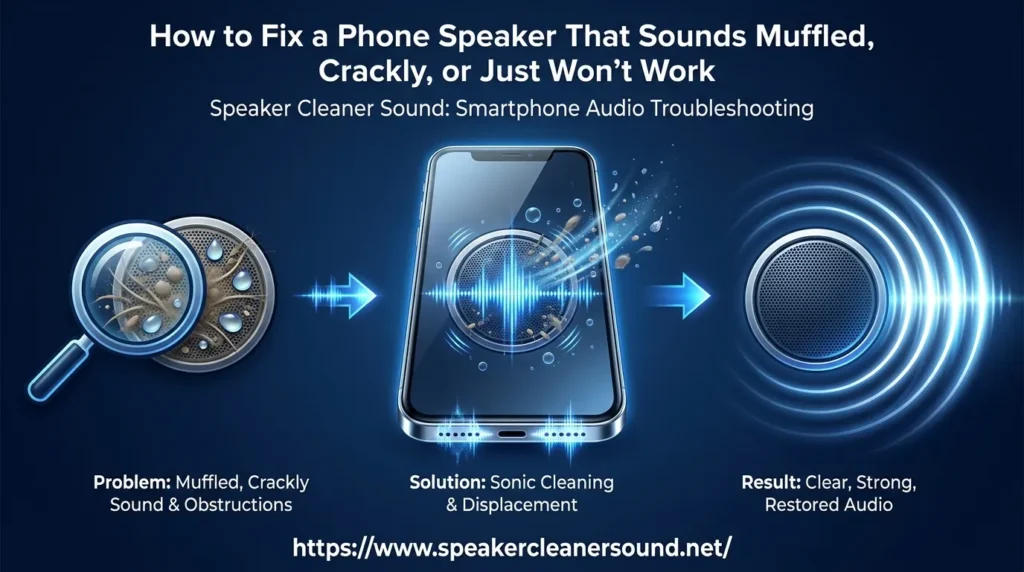
Speaker Cleaner Sound is a free, browser based tool that plays sound and vibration through your phone speaker. It’s built for situations like these:
- Muffled sound after light water exposure
- Dust or lint sitting near the speaker opening
- A slightly crackly sound that started after the phone got a little wet
- General phone speaker cleaning as an occasional maintenance step
Because the tool runs in your browser, there’s nothing to install. You just open the page on your phone and use it directly. Our Speaker Cleaner Sound: How It Works and How to Use It guide walks through this step by step.
Results can vary depending on your phone model, the speaker design, how much moisture or debris is actually present, and your browser. Some people notice a difference, others don’t notice much change at all, and that’s a realistic expectation to have going in. This tool is meant to be one possible troubleshooting step, not a guaranteed fix.
What Speaker Cleaner Sound Cannot Fix
To be upfront, this tool is not a repair solution. It cannot:
- Repair a torn or physically damaged speaker cone
- Fix a speaker with damaged wiring or a loose internal connection
- Reverse corrosion caused by liquid damage
- Remove water that has gotten deep inside the phone, past the speaker itself
- Fix any electrical fault inside the phone
If your speaker is completely silent, distorted no matter the volume, or making a rattling or buzzing sound that doesn’t go away, that’s usually a sign of a hardware problem that a sound based tool isn’t designed to solve.
Testing Your Speaker Before and After Trying Anything
It helps to actually test your speaker before trying any fix, so you have a clear sense of whether anything changed afterward. Play a song, a video, or a voice memo and pay attention to whether the sound is quiet, muffled, distorted, or only coming from one side.
Our speaker test online page lets you run a quick sound test directly in your browser, so you can compare results before and after trying any troubleshooting step.
When to Stop DIY and See a Professional
DIY steps are worth trying first, but there are clear signs that it’s time to see a professional instead of continuing to experiment on your own.
- The phone was submerged in water, not just splashed
- The speaker is completely silent even after basic checks
- There’s a burning smell or the phone feels unusually warm near the speaker
- The sound issue is getting worse over time instead of better
- The phone was dropped and the sound problem started right after
- Liquid also affected the charging port, buttons, or screen
A phone repair technician can open the device safely and inspect or replace the actual speaker component, which isn’t something that’s safe or practical to attempt at home. Speaker Cleaner Sound is meant to be one troubleshooting step among several, not a replacement for professional repair when the problem is genuinely mechanical or electrical. If you have more questions, our FAQ page has more detail.
Frequently Asked Questions
Why is my phone speaker not working at all?
This can be caused by low volume, an active Bluetooth connection, a case blocking the speaker, a software glitch, or in some cases, physical speaker damage. Start with the basic checks before assuming the worst.
Can I fix my phone speaker myself?
Many minor issues, like dust, lint, a blocked speaker, or a wrong volume setting, can often be checked and resolved yourself. Physical damage, internal liquid damage, and electrical faults generally need a professional.
Why does my Android phone speaker sound distorted?
High volume, dust near the speaker, moisture, or in some cases, hardware damage can all cause distortion. Lowering the volume is the easiest first thing to try.
How do I remove dust or lint from my phone speaker?
A soft dry brush and gentle tapping with the speaker facing down are the safest DIY methods. Avoid sharp objects and avoid pressurized air.
Can sound really help with water near a phone speaker?
It may help in cases of light surface moisture near the speaker opening, though results vary and it cannot fix serious water damage.
When should I stop trying things myself and go to a repair shop?
If the phone was fully submerged, the speaker is completely silent, there’s a burning smell, or the problem is getting worse rather than better, it’s time to see a professional.
Leave a Reply